# Device Link to CapaOne
> Link your devices to CapaOne, either with a PowerShell script or by passing the CapaOne Agent package to the client.
Source: https://docs.capaone.com/capainstaller/the-capainstaller-console/configuration-management/what-is-configuration-management/device-link-to-capaone/
Product: CapaInstaller — a separate CapaSystems product; do not apply this page to any other.
This guide shows you how to link your devices to CapaOne. There are two options, both shown below:
1. Run a PowerShell script on the client.
2. Pass the CapaOne Agent Package to the client.
:::caution
After installing the CapaOne Agent, run the Hardware Inventory job. This lets the CapaInstaller Agent collect the CapaOne Agent's ID, which is used to link the CapaInstaller client with the CapaOne client.
:::
**How to link your device with CapaOne with CapaSystems CapaOne Agent Package:**
| | **Description** |
|---:|:----------------------------------------------------------------------------------------------------------------------------------------------------------------------------------------------------------------------------------------------------------------|
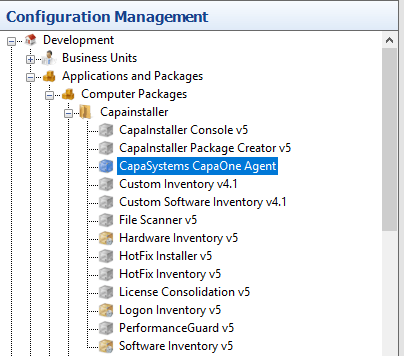
| 1 | In your CM Point → Applications and Packages → Computer Packages → CapaInstaller → you should have the CapaOne Agent Package:
 |
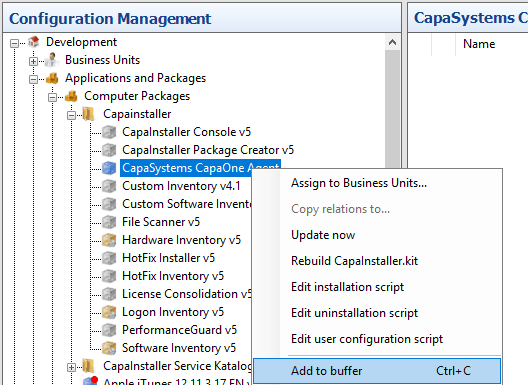
| 2 | Link the package to the computers
 |
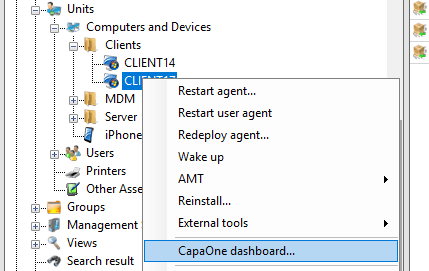
| 3 | When the package is set to “Installed” on the client, you can right-click on your client, and click on “CapaOne dashboard…” and you will come to the page:
 |
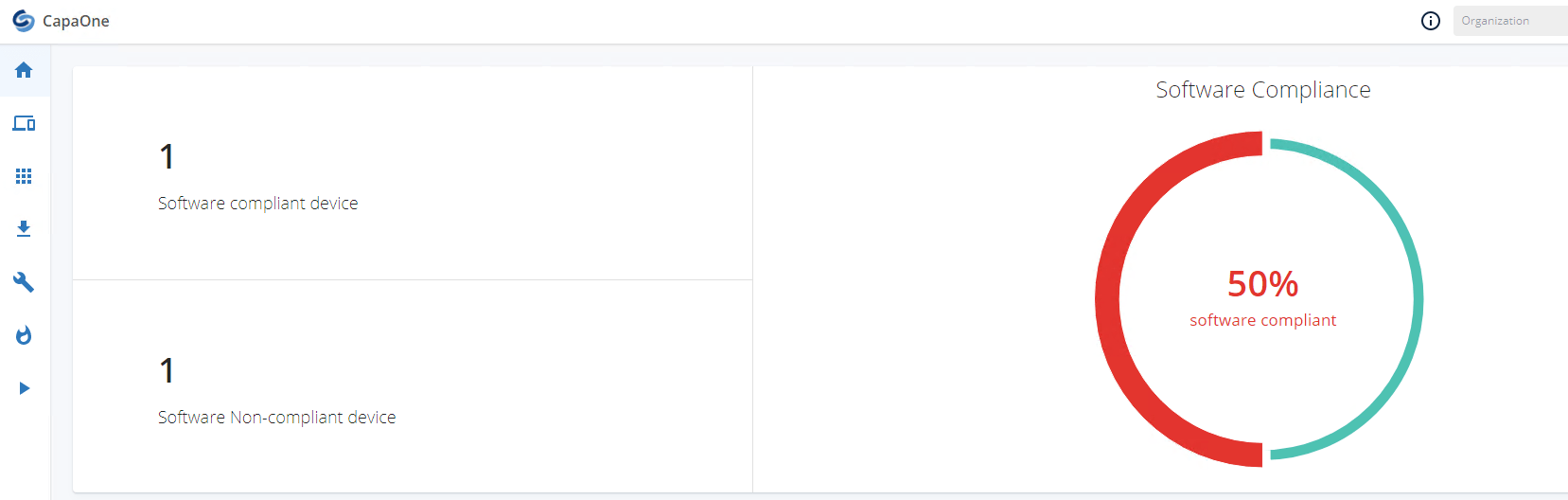
| 4 | Login to , and verify that you can see your client in your dashboard view:
 |
**How to link single devices to CapaOne with PowerShell script:**
:::note[Important]
First, you have to make sure that your client is in your CI Console.
:::
| | **Description** |
|---:|:-------------------------------------------------------------------------------------------------------------------------------------------------------------------------|
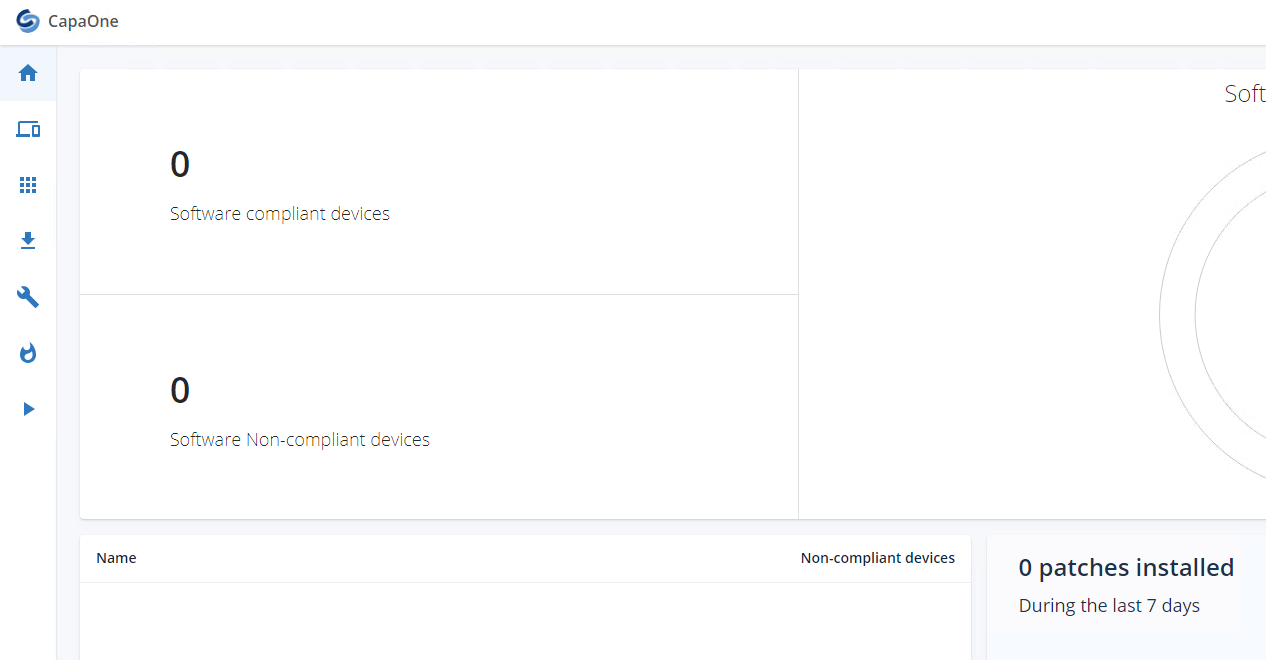
| 1 | First, log in to your account:
 |
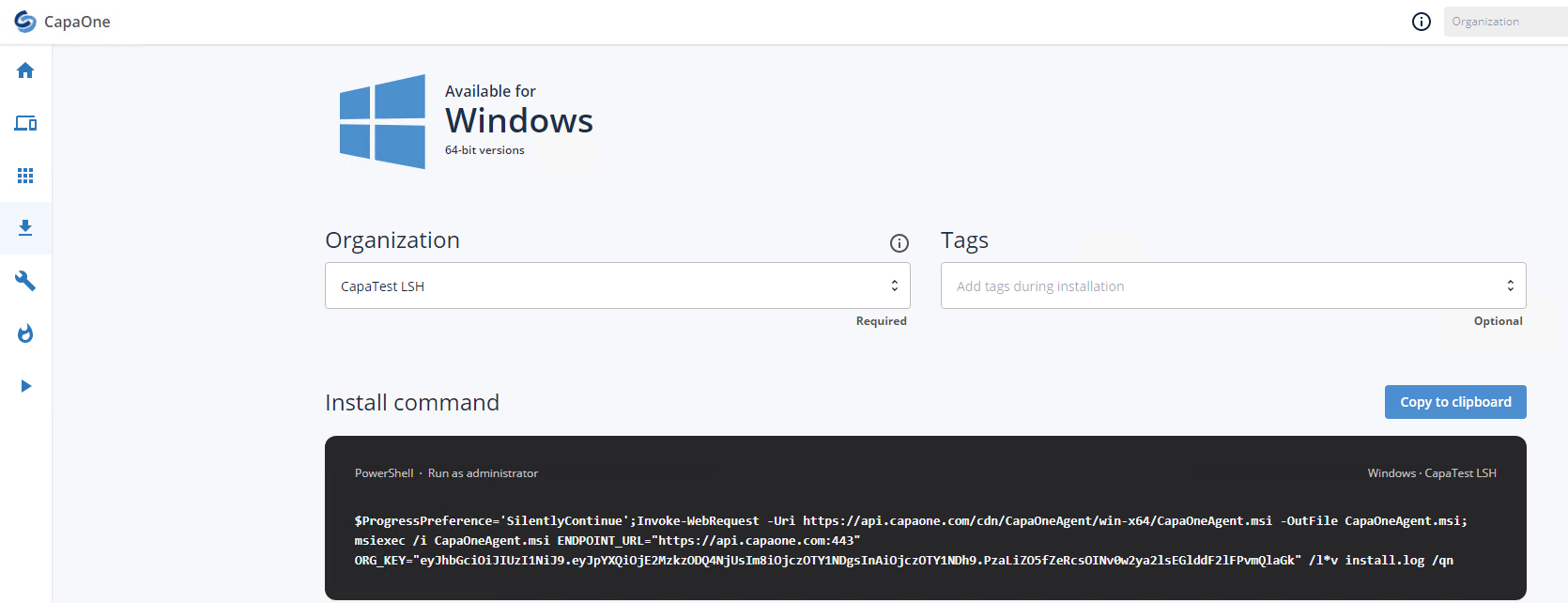
| 2 | Click on “Download and install agent” tab, and copy your PowerShell script:
 |
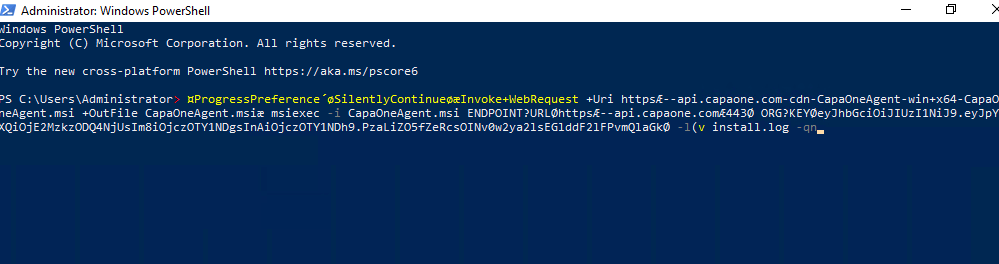
| 3 | Past the PowerShell script into your Client you have on your CI Console:
 |
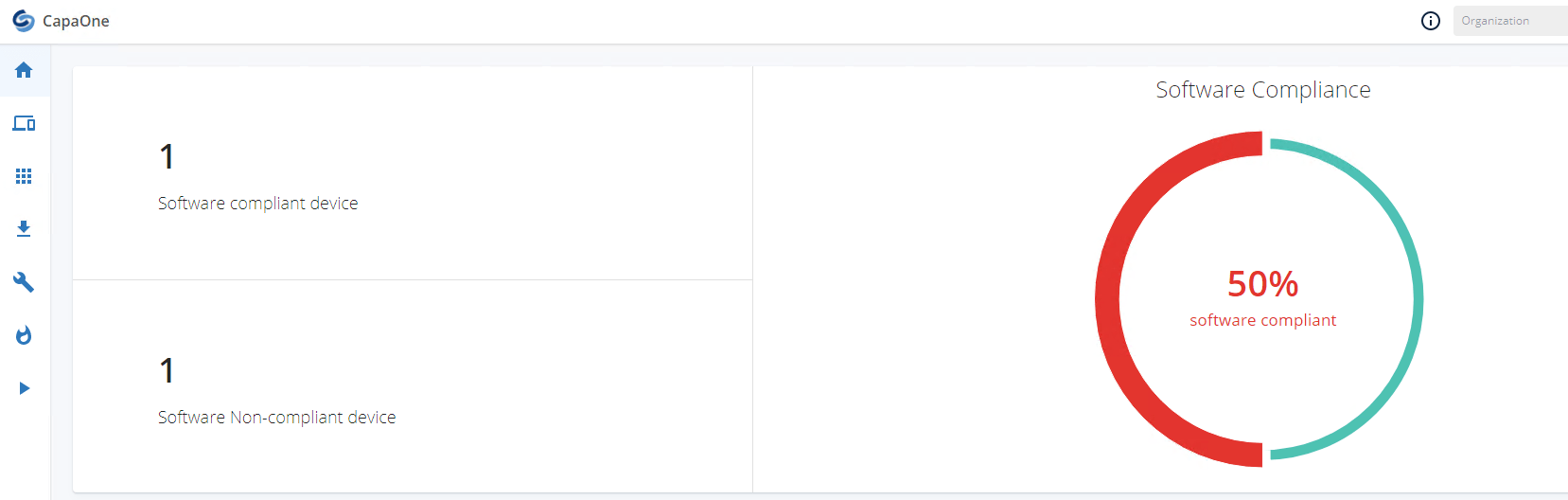
| 4 | Make sure that the client now is linked to CapaOne in your account:
 |
## Related
- [CapaOne Integration in Console](/capainstaller/the-capainstaller-console/configuration-management/what-is-configuration-management/capaone-integration-in-console/)