# Send Commands to device
> Send commands to enrolled devices, which stay pending in the system until the device picks them up.
Source: https://docs.capaone.com/capainstaller/the-capainstaller-console/configuration-management/how-to-use-configuration-management/working-with-devices/send-commands-to-device/
Product: CapaInstaller — a separate CapaSystems product; do not apply this page to any other.
From Configuration Management it is possible to send a number of commands to enrolled devices.
### Managing commands
These commands will be created as pending in the system and carried out when contact with the device is established.
How to send, view pending and delete commands to devices...

- **Right-click** the device and **expand** the 'Send Command' context menu.
- Depending on the device a set of available commands will be shown in the "Send Command" menu
:::tip
The Wipe Command can be scheduled to be carried out at a specific date and time.
:::
### Viewing pending commands
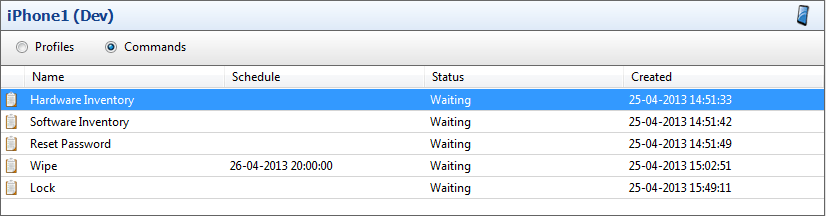
In order to see which commands have been created and are still pending, select a device in the navigation pane, and select 'Commands' in the top panel of the content view.
### Canceling device commands
Commands that have been issued to devices, can be canceled if they haven't yet been sent to the device.
In order to see which commands have been created and are still pending on a device, select it in the navigation pane, and click 'Commands' in the top panel of the content view.
Right-click the command or commands that are no longer needed, and select 'Delete'.
### Common commands
Available commands all CapaInstaller managed devices
- ### Get Inventory
Collects inventory data from the device, which is then available in the detail view for that device in the CapaInstaller Console
- ### Clear passcode
Enables the device to be unlocked without the need for a passcode. If a policy exists that requires a passcode, a grace period will be given to enter a new passcode
- ### Lock
Requires a lock screen to be set up on the device, with either pin, password, or pattern.
Will cause the device to be remotely locked like pressing the lock button on the device.
If authentication is set up it will be required to unlock the device.
- ### Wipe
The Wipe command erases all device data and restores it to factory defaults.
This command can be scheduled for a specific time
- ### Rename
Renames the selected device
### Device Owner commands
- ### **Lost Mode**
| Step | Configuration |
|-------:|:---------------------------------------------------------------------------------------------------------------------------------------------------------------------------------------------------------------------------------------------------------------------------------------|
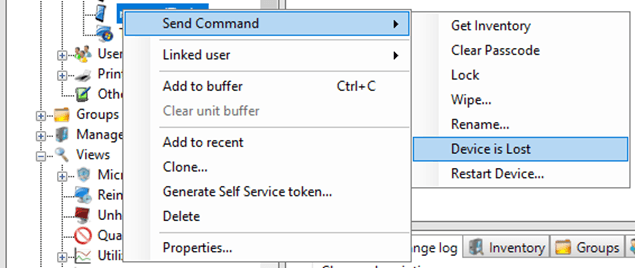
| 1 | First, right-click your device, expand “Send Command”, and click “Device is lost”
 |
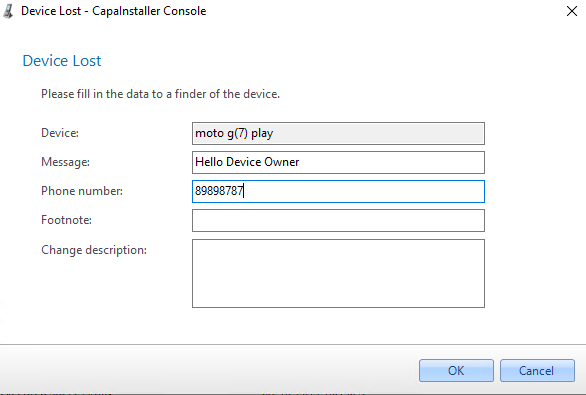
| 2 | Type a message, and phone number, and click “OK”.
 |
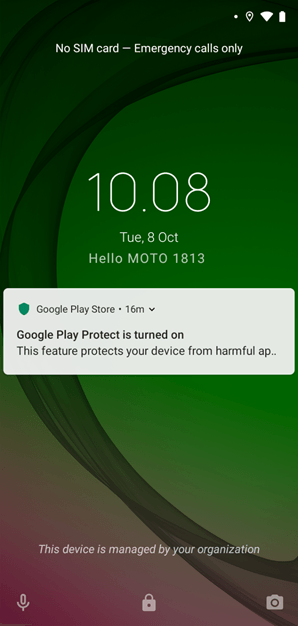
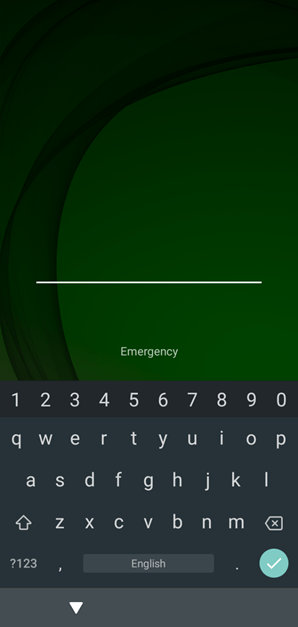
| 3 | On the device, it will look like this, and you have to type the last 6 digits of the phones UUID if you want to enter the phone:
 |
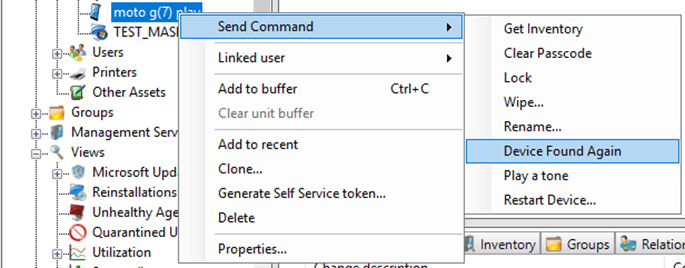
| 4 | When you have found your device, right-click your device, click “Send Command” and click “Device Found Again”
 |
### Samsung Knox commands
- ### **Lost Mode**
| Step | Configuration |
|-------:|:----------------------------------------------------------------------------------------------------------------------------------------------------------------------------------------------------------------------------------------------------------------------------------------|
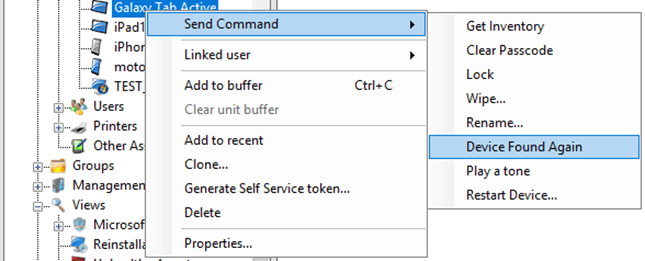
| 1 | First, right-click your device, expand “Send Command”, and click “Device is lost”
 |
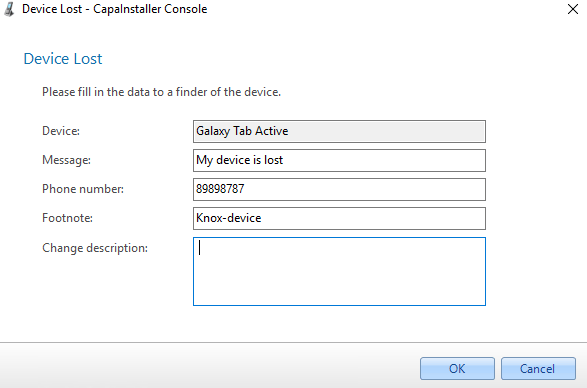
| 2 | Type a message, phone number, and footnote and click “OK”.
 |
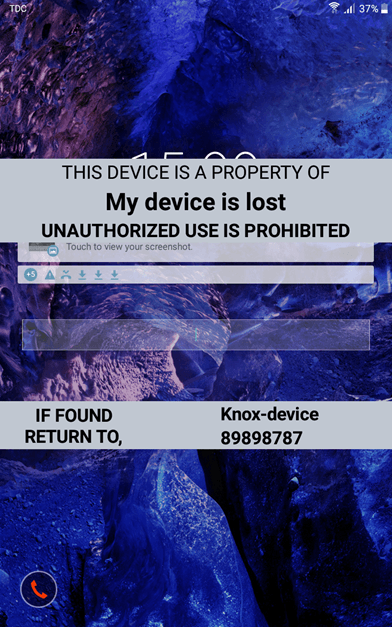
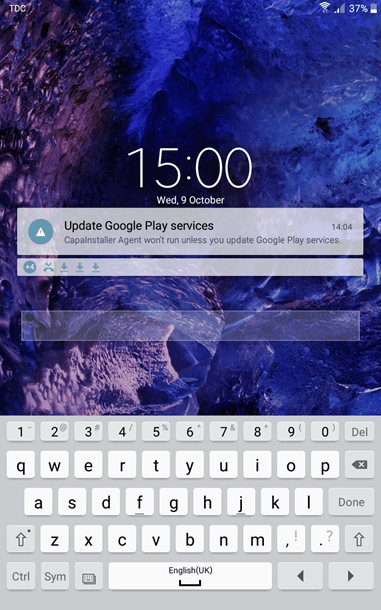
| 3 | On the device, it will look like this, and you have to type the last 6 digits of the phones UUID if you want to enter the phone:
 |
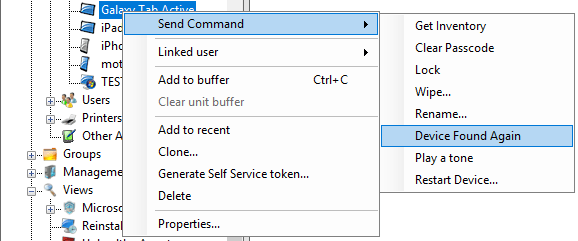
| 4 | When you have found your device, right-click your device, click “Send Command” and click “Device found again":
 |
### iOS commands
Specific commands for devices running iOS
- ### Lost Mode
| Step | Configuration |
|-------:|:---------------------------------------------------------------------------------------------------------------------------------------------------------------------------------------------|
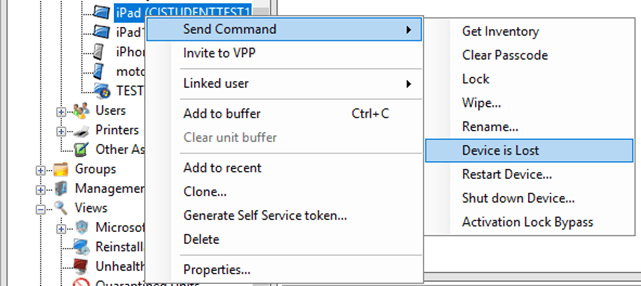
| 1 | First, right-click your device, expand “Send Command”, and click “Device is lost”
 |
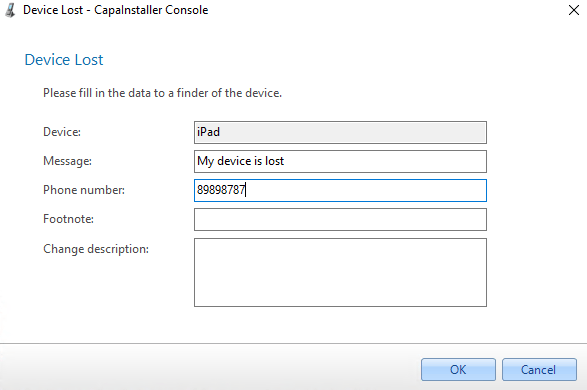
| 2 | Type a message, and phone number, and click “OK”.
 |
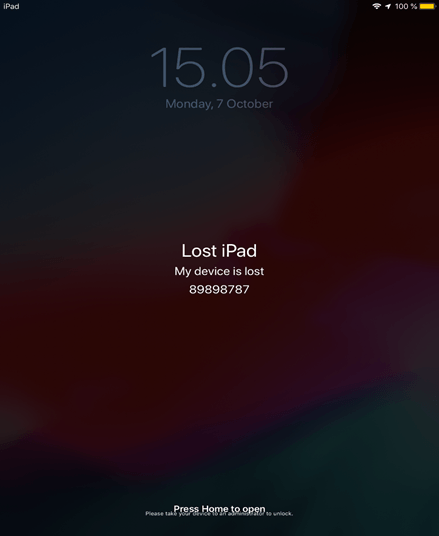
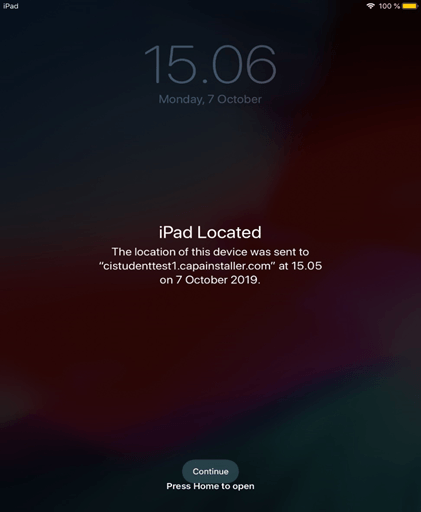
| 3 | On the device, it will look like this:
 |
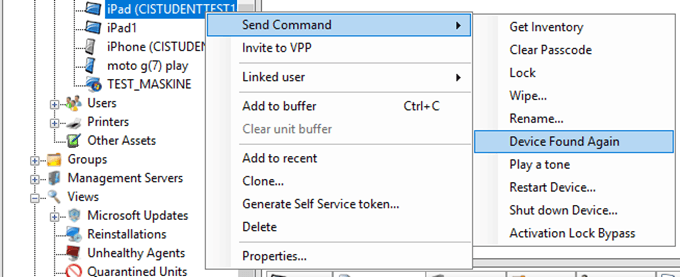
| 4 | When you have found your device, right-click your device, click “Send Command” and click “Device found again”
 |
| 5 | On the device, it will look like this:
 |
- ### **Update operating system for iOS**
:::note[Important]
The phone must be on charge (or have at least 50% battery) and be connected to Wi-Fi
Check [Apple Documentation | iOS Update](https://support.apple.com/en-om/guide/mdm/mdm02df57e2a/web) for further information.
:::
| Step | Configuration |
|-------:|:----------------------------------------------------------------------------------------------------------------------------------------------------------------------------------------------------------------------------------------------------------|
| 1 | First, make sure that "Update Is Available" is set to "True"
 |
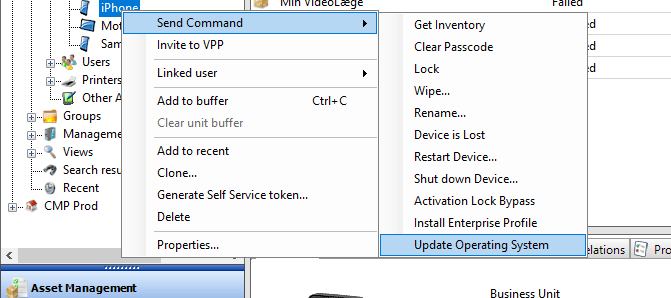
| 2 | Right-click your apple device, click send command, and then click "Update Operating System"
 |
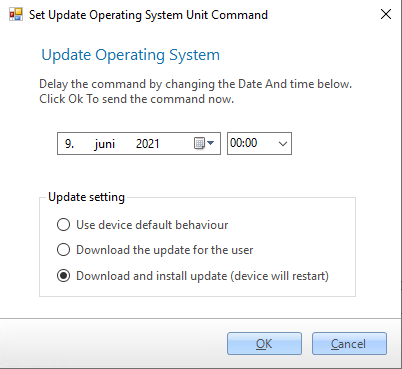
| 3 | Click on "Download and install update". (Note that the device will restart)
 |
| 4 | Check the update has started under inventory in your device
 |
| 5 | Make sure that the update status now is set to "installing"
❗ Be aware that the "Installing" status will not update until a user is logging on to the iOS device
**** |
| 6 | Make sure you have the software update installed.
 |
## Related
- [Units in Configuration Management](/capainstaller/the-capainstaller-console/configuration-management/what-is-configuration-management/units-in-configuration-management/)