# Assign profiles/applications to a Business Unit
> Assign profiles and applications to a business unit.
Source: https://docs.capaone.com/capainstaller/the-capainstaller-console/configuration-management/how-to-use-configuration-management/assign-profiles-applications-to-a-business-unit/
Product: CapaInstaller — a separate CapaSystems product; do not apply this page to any other.
The following is a description of how to assign profiles and applications to business units.
---
The Buffer
| | |
|:---------|:-----------------------------------------------------------------------------------------------------------------------------------------------------------------------------------------------------------------------------|
| **Step** | **Action** |
| 1 | Locate the profile/application, right-click it, and select 'Add to buffer'. |
| 2 | Locate the business unit, right-click it, and select 'Assign Profiles/Applications', or use the shortcut Ctrl+G with the business unit selected.
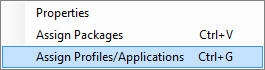 |
| 3 | Enter an optional comment and confirm the operation.
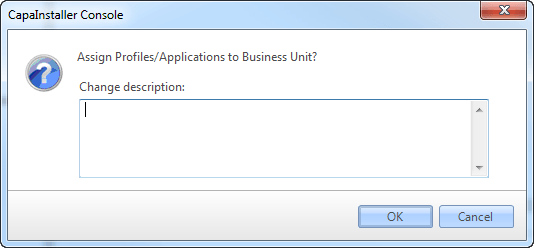 |
:::tip
If you want to assign profiles or applications to more than one business unit, you can disable the removal from the buffer after pasting.
You do this in Options -> Configuration Management -> Miscellaneous -> Uncheck *'Remove from buffer after paste'*
:::