# How to Update the Android Agent - On-Premise
> Update the CapaInstaller Android Agent on your own server, for devices that get it from there rather than the Play Store.
Source: https://docs.capaone.com/capainstaller/knowledge-base/how-to-update-the-android-agent-on-premise/
Product: CapaInstaller — a separate CapaSystems product; do not apply this page to any other.
This article describes how to update the CapaInstaller Android Agent on your CapaInstaller Server. When you enroll an Android device, the Android Agent is either downloaded from the Play Store or from the CapaInstaller Server.
The agent files are located in the CMP Points .\Resource\AndroidAgent folder.
:::tip
Current CapaInstaller Android Agent version: [Capainstaller Agent 3.4.195.zip](/attachments/capainstaller-kb/c00131aa-511b-4101-b424-b88d47bac772.zip)
:::
## Update Android Agent files On-Premise Installation
When you enroll an Android device, the MDM service provides the Android Agent. Follow the guide below to replace the files.
:::note[Important]
If you have more than one Configuration Management Point and enrol devices in them, you need to replace Android Agent files in all of the CMP's.
:::
| Update Android Agent On-Premise | |
|:----------------------------------|:--------------------------------------------------------------------------------------------------------------------------------------------------------------------------------------------------|
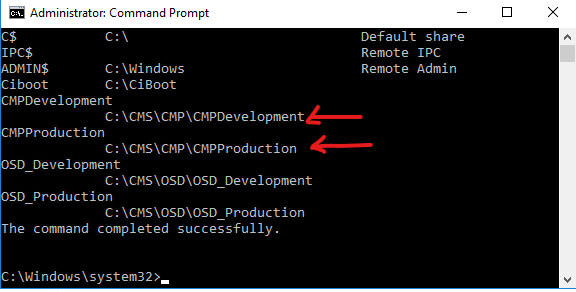
| 1. Locate CMP Share | Open an admin command prompt on the Capa server and type "net share".
In this example, you can see two CMP points:
 |
| 2. Browse to the folder. | Open File Explorer and browse to CMP Share:\Resources\AndroidAgent |
| 3. Overwrite Files | In AndroidAgent folder, replace the two files:
- CapaInstallerAgent.apk (agent)
- CapaInstallerAgent.json (version file) |
| 4. Enrol device | Enrol a test device to verify the Android Agent version is updated to the new version |
## Update Android Agent on Devices (Enterprise app)
To update the CapaInstaller Agent on devices, follow the below.
| Update Android Agent on Devices | |
|:-------------------------------------------|:------------------------------------------------------------------------------------------------------------------------------------------------------------------------------------------------------------------------------------------------------------------------------------------------------------------------------------------------------------------------|
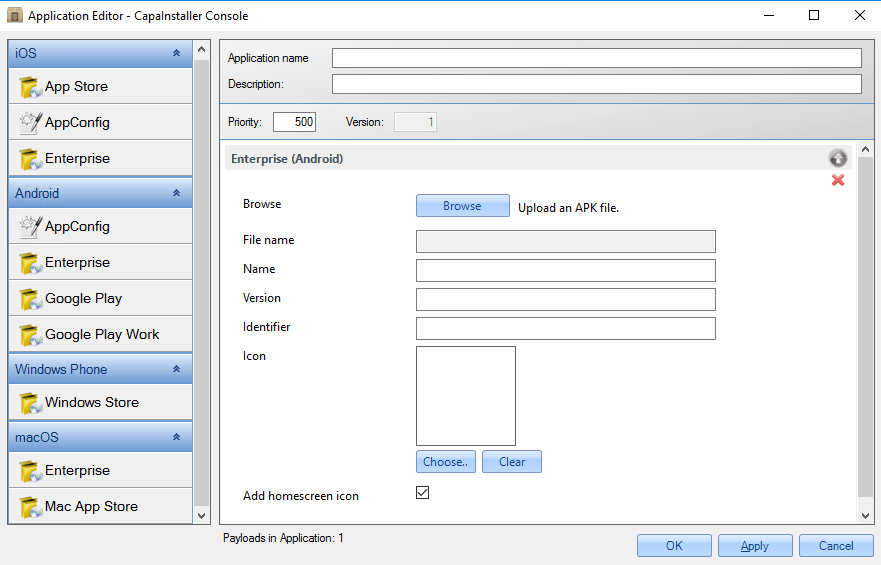
| 1. Create Android Enterprise App | In Capa Console, go to Configuration Management, select Device Application
Right-click and select Create Application
In the Android section, select Enterprise
 |
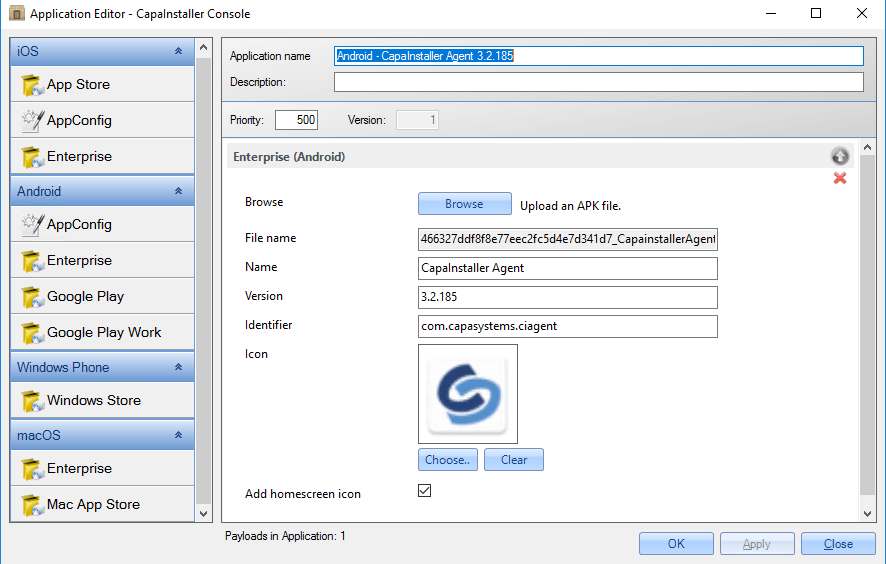
| 2. Select the APK file | Click Browse and locate the Capainstalleragent.apk file
Click Open
Remove the check mark from "Add homescreen icon".
Type an Application Name and click OK
 |
| 3. Link App to the Devices | Right-Click on the App, you just created and select add to buffer
Select the device(s) you want to update. Right-click and select Paste Profiles/Applications
Wait for Status to be Installed |
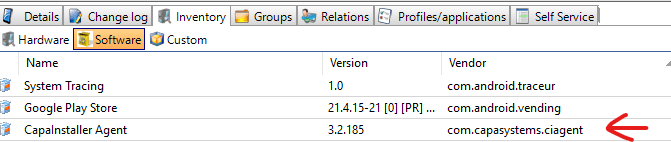
| 4. Check the Android Agent has been update | Select a device and select the Software inventory tab.
Check the version of CapaInstaller Agent is the version you updated it to.
NB! It may take some time for software inventory to update. Sometimes you may see both the old and the new version until inventory is completed.
 |