# How to Update the Android Agent - Google Play Works

> Keep the Android Agent updated by publishing it as a Google Play Work app linked to your devices.

Source: https://docs.capaone.com/capainstaller/knowledge-base/how-to-update-the-android-agent-google-play-works/  
Product: CapaInstaller — a separate CapaSystems product; do not apply this page to any other.

If you want to keep the Android Agent updated on your devices linked to an Android Enterprise, you can create a Google Play Work App of the CapaInstaller Agent and link it to your devices.

When a newer version is uploaded to Play Store, all linked devices will automatically be updated by the Play Store.

:::tip
Android Enterprise


This is only for a device linked to an Android Enterprise account.
:::

## Step-by-step guide

This guide describes how to create the app in the MDM Portal and the CapaInstaller Console.

| Update Android Agent           |                                                                                                                                                                                                                                                                                                                             |
|:-------------------------------|:----------------------------------------------------------------------------------------------------------------------------------------------------------------------------------------------------------------------------------------------------------------------------------------------------------------------------|
| Open MDM Portal                | Browse to <https://mdm.capaone.com/> and login                                                                                                                                                                                                                                                                              |
| Open Manage Applications       | Select Applications in the menu and click "Manage Applications"                                                                                                                                                                                                                                                             |
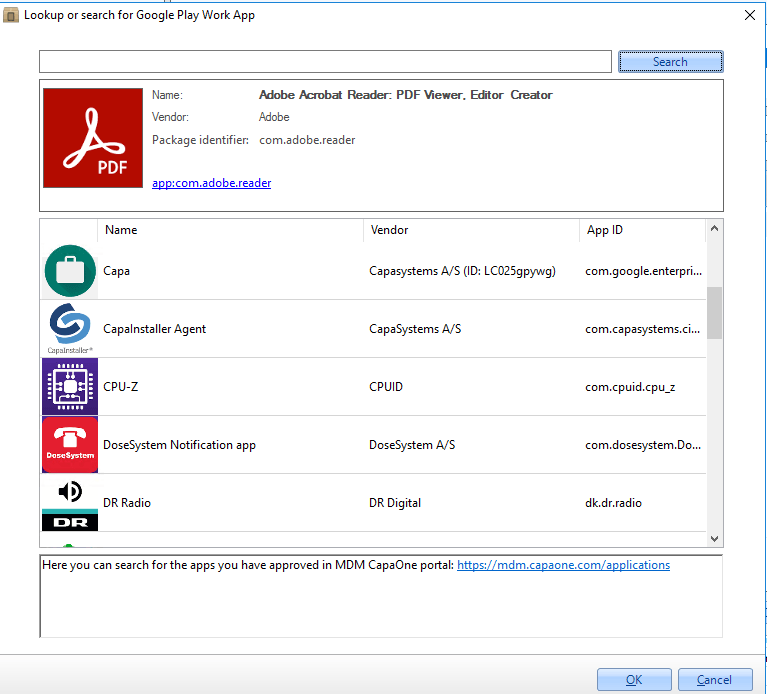
| Search in Play Store           | Search for CapaInstaller Agent in Play Store <br/>  <br/> ![](/attachments/capainstaller-kb/00013a9f-4ccc-47c3-98e5-8a04b197d1fc.png)                                                                                                                                                                                                |
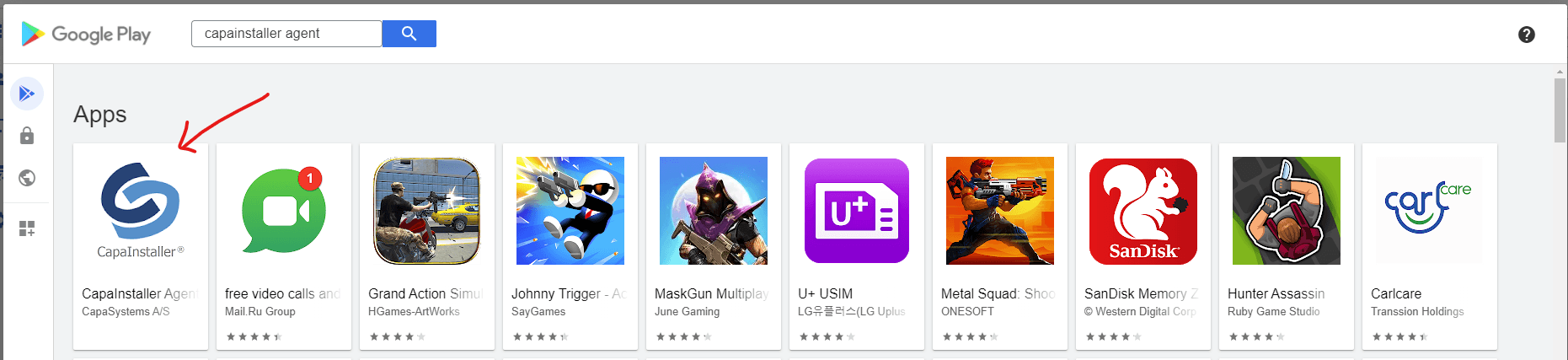
| Select app                     | Click Select on CapaInstaller Agent <br/>  <br/> ![](/attachments/capainstaller-kb/8118594f-a8c2-469e-b9db-6b15be5766ab.png)                                                                                                                                                                                                         |
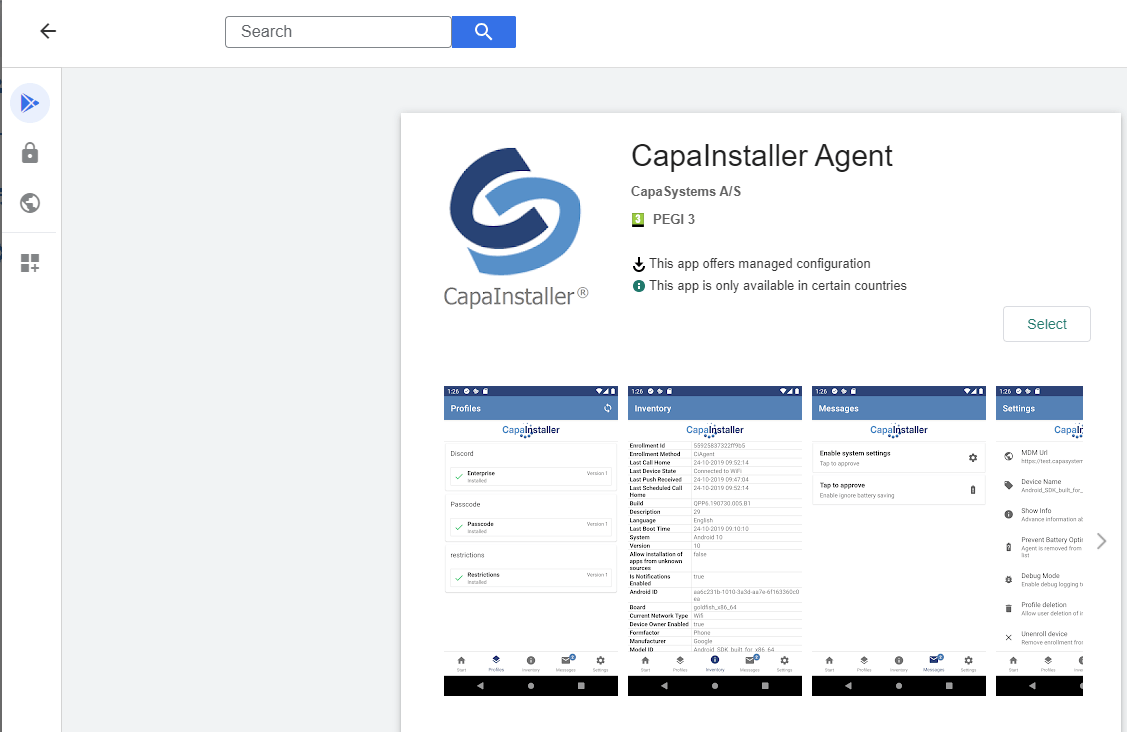
| Click Confirm                  | Click Confirm and wait for the app to be created <br/> ![](/attachments/capainstaller-kb/6cf02e32-258a-4bbc-a575-8c5191907a92.png)                                                                                                                                                                                                   |
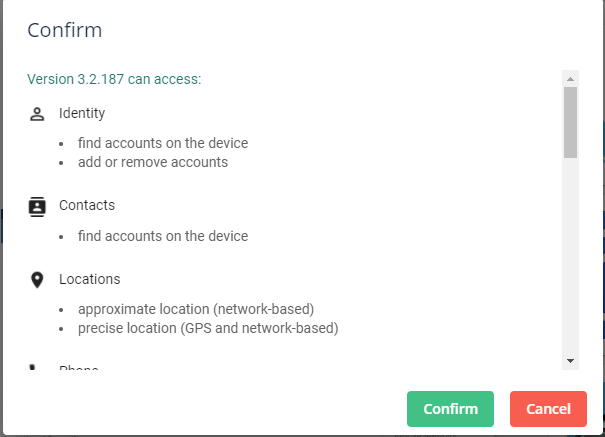
| Check app is created           | CapaInstaller Agent is created and is in the list of approved apps <br/> ![](/attachments/capainstaller-kb/a3148d99-ccad-497e-bd5b-df8941e37350.png)                                                                                                                                                                                 |

| Create a device app            | Open the CapaInstaller Console and go to Configuration Management Module <br/> Open Applications and Packages <br/> Right Click on Device Applications and select Create Application <br/> Select Android → Google Play Work in Application Editor <br/> ![](/attachments/capainstaller-kb/06aecc66-9fb7-4eab-9558-d814edbdff6a.png) |
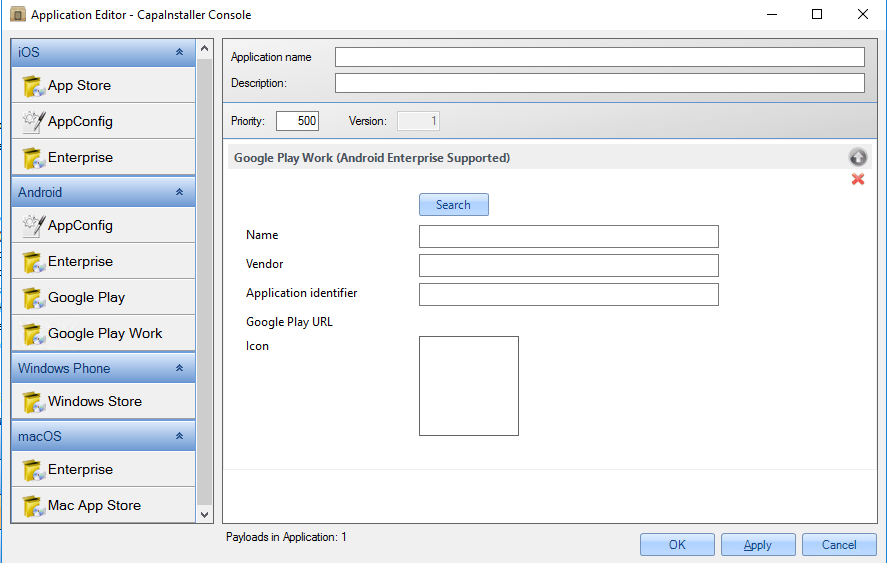
| Search for CapaInstaller Agent | Click twice and scroll down to locate CapaInstaller Agent <br/> Mark it and click OK <br/> ![](/attachments/capainstaller-kb/03538765-8181-4164-a1cd-df6338684906.png)                                                                                                                                                               |
| Name the App                   | Type an Application name and click ok <br/> ![](/attachments/capainstaller-kb/c6da70ea-78a7-4f15-b4d6-abcdd84a7678.png)                                                                                                                                                                                                              |
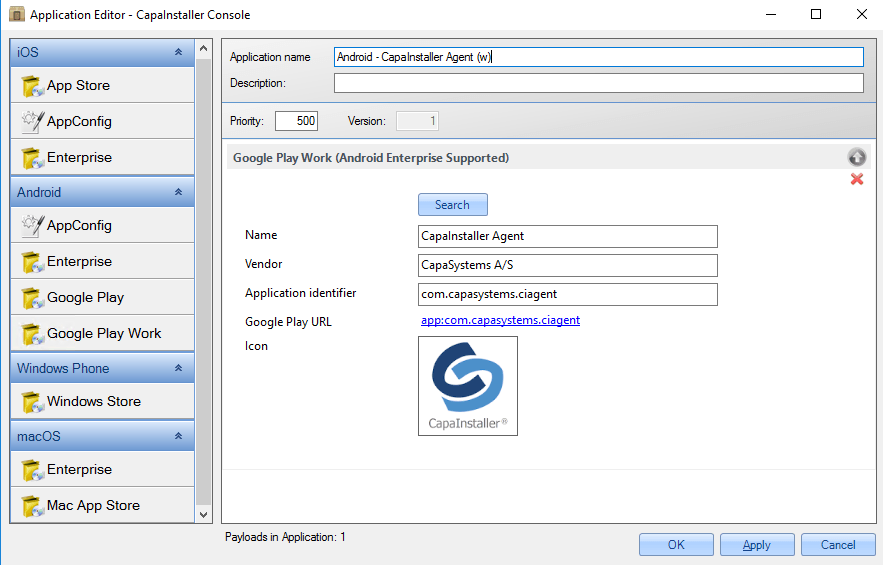
| Link app to the device(s)      | Add App to buffer and link to the device(s) <br/> Play Store will install the app and keep it updated                                                                                                                                                                                                                       |