# Install and configure access to CapaInstaller Management Portal
> Install the CapaInstaller Management Portal and enable access to it, including the software it depends on.
Source: https://docs.capaone.com/capainstaller/installation-and-maintenance/how-to-install/install-and-configure-access-to-capainstaller-management-portal/
Product: CapaInstaller — a separate CapaSystems product; do not apply this page to any other.
# Introduction
A simple overview of the steps involved in installing and enabling access to the CapaInstaller Management Portal
### Requirements
The Management Portal relies on the following software
Internet Information Services (IIS) 8.5 or above
.NET 4.5.1 or above
### Deploy a Back-end Service
To be able to authenticate against an Active Directory, the Management Portal relies on the CapaInstaller Back-end Service.
If you already have a Back-end Service Deployed for other purposes, skip this step.
### Read more
- How to [Deploy the Back-end Service](/capainstaller/the-capainstaller-console/system-administration/what-is-system-administration/services/back-end-service/deploy-the-back-end-service/)
### Enable the Web Server
Requirements:
Internet Information Services (IIS) 8.5 or above
.NET 4.5.1 or above
Enable the Web Server (IIS) role on the Windows Server that is set to host the Management Portal site. This server's DNS name will be the base URL for access to the Management Portal.
### Read more
- [Installing IIS8 on Windows server 2012](https://www.iis.net/learn/get-started/whats-new-in-iis-8/installing-iis-8-on-windows-server-2012)
### Enable Security and add Trustee

Enabling Security and adding a Trustee from Active Directory is done under **System Administration** in the **CapaInstaller Console.**
In this example, we add the Active Directory group "Supporters" to the default "Supporters" profile in CapaInstaller.
Members of this AD group will now inherit the Access permissions for the profile.
However the security module only grants access to Management Portal, there is no graduation of access to Management Portal. Either you have access or not.
### Execute the Windows Installer package
Execute the Windows Installer package (**CapaInstaller Management Portal.msi)** for the Management Portal.
Locate the file in the share of the root configuration management point e.g. "**...\CMPDEV\Resources\Management Portal\CapaInstaller Management Portal.msi**"
### Configure Database access
How to configure database access...
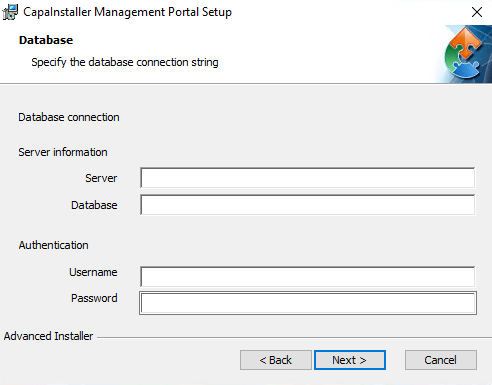
1. To configure access to the CapaInstaller Database insert the Database server URL and the Database name
2. Enter the SQL Server Database login that is used for access to the CapaInstaller Database
### Reporting Server link
Reporting Server link
Reporting Server link is just a link to SQL Reporting Server. To access Reporting service from Management Portal, check the following:
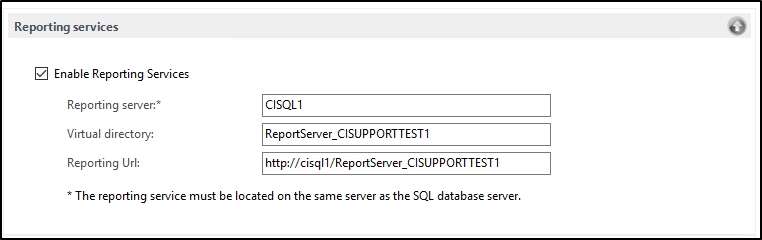
1. SQL Reporting Service must be installed data must be entered in the console in [Reporting and Queries options](/capainstaller/the-capainstaller-console/general-console-settings-and-views/options/reporting-and-queries-options/).
2. Some reports must be deployed to reporting services. You can use predefined reports: [Deploy predefined reports to reporting services](/capainstaller/the-capainstaller-console/reporting-and-queries/how-to-use-reporting/deploy-predefined-reports-to-reporting-services/).
When Reporting Service has been configured and reports have been deployed to reporting services, the link in Management Portal will open the webpage defined in Reporting URL.
Open Management Portal and select reporting.
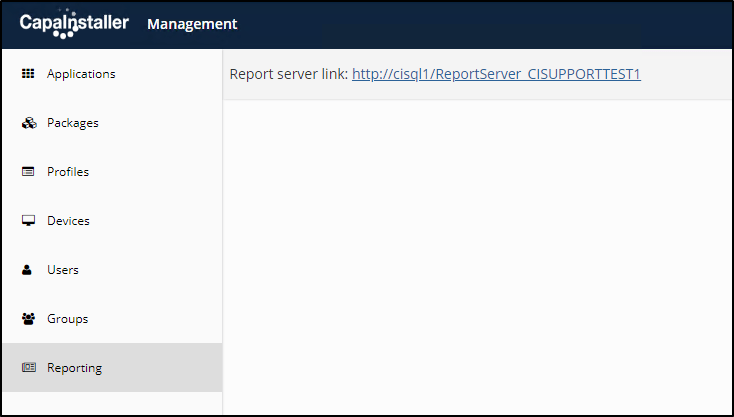
When following the link, the root folder on SQL Report Server is shown (may prompt for login - if it does enter the credentials with access to reporting services)
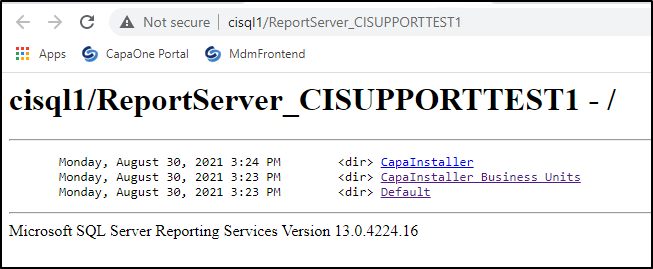
Browse directories and select a report.
### **Installation complete**
:::note
After completing the above steps, the **CapaInstaller Management Portal** is now available
Simply point a web browser to [Http://\/ManagementPortal ](#)and log in with a user with valid credentials
:::
### Read more
- [Updating the Management Portal](/capainstaller/installation-and-maintenance/how-to-update/updating-the-management-portal/)