# Android Device Owner Enrollment
> Bulk enroll Android devices as Device Owner using the CapaInstaller Configurator application.
Source: https://docs.capaone.com/capainstaller/installation-and-maintenance/getting-started-with-device-management/device-enrollment/android-device-owner-enrollment/
Product: CapaInstaller — a separate CapaSystems product; do not apply this page to any other.
# Introduction
The following is a description of how to use the CapaInstaller Configurator application for fast bulk enrollment of Android devices, enabling the use of Android Device Owner specific configurations.
### Prerequisites
- A brand new Android Device Owner capable device or one that has just been factory reset
- The *Capainstaller Configurator App* installed on the device used to distribute the configurations
**Google Play Store**
Downloading the Configurator App from Google Play Store...
:::note[Important]
This method is the recommended method of getting the Configurator App.
Updates are handled automatically by the device and are taken directly from the Play Store when a new version arrives.
:::
Download the Configurator App from the [Google Play Store](https://play.google.com/store/apps?hl=dk)
[CapaInstaller Configurator](https://play.google.com/store/apps/details?id=com.capasystems.configurator)
:::caution
A Google Account configured on the device is needed for accessing and downloading from the [Google Play Store](https://play.google.com/store/apps?hl=dk)
:::
:::note[Important]
If the App is not available on the Play store and you get an error page when trying to download - the app may be down for maintenance or upgrade - please try again at a later time
:::
**Android Enterprise Application**
Manually distributing the Configurator App as an Enterprise Application...
- **Right Click** the *Configuration Management point* and **select** *Open Folder in Windows Explorer*
- **Browse** to *Resources* → *CapainstallerConfigurator* and **copy** *the path*
- [Creating Enterprise Device Applications](..\..\..\The%20CapaInstaller%20Console\Configuration%20Management\How%20to%20use%20Configuration%20Management\Working%20with%20Devices\Device%20Applications\Creating%20Enterprise%20Device%20Applications.md)
- **Paste** *the path* and **select** the *CIConfigurator.apk*
:::caution
This method is on
Remember to keep the Device Application updated with the latest version of the CapaInstaller Configurator app, whenever you update your CapaInstaller Solution!
[Updating an Enterprise Device Application](..\..\..\The%20CapaInstaller%20Console\Configuration%20Management\How%20to%20use%20Configuration%20Management\Working%20with%20Devices\Device%20Applications\Updating%20an%20Enterprise%20Device%20Application.md)
:::
- An existing [Getting started with Enrollment Configurations](/capainstaller/the-capainstaller-console/system-administration/getting-started-with-enrollment-configurations/) to distribute
:::note[Important]
**For NFC enrollment**
- ```
Android 7 - 9. From Android 10 NFC enrollment has been deprecated.
```
**For QR code enrollment**
- Android 7.0.1+ device
:::
### Initial Setup
How to setup the Enrollment Configurator
| Step | Configuration |
|-------:|:--------------------------------------------------------------------------------------------------------------------------------|
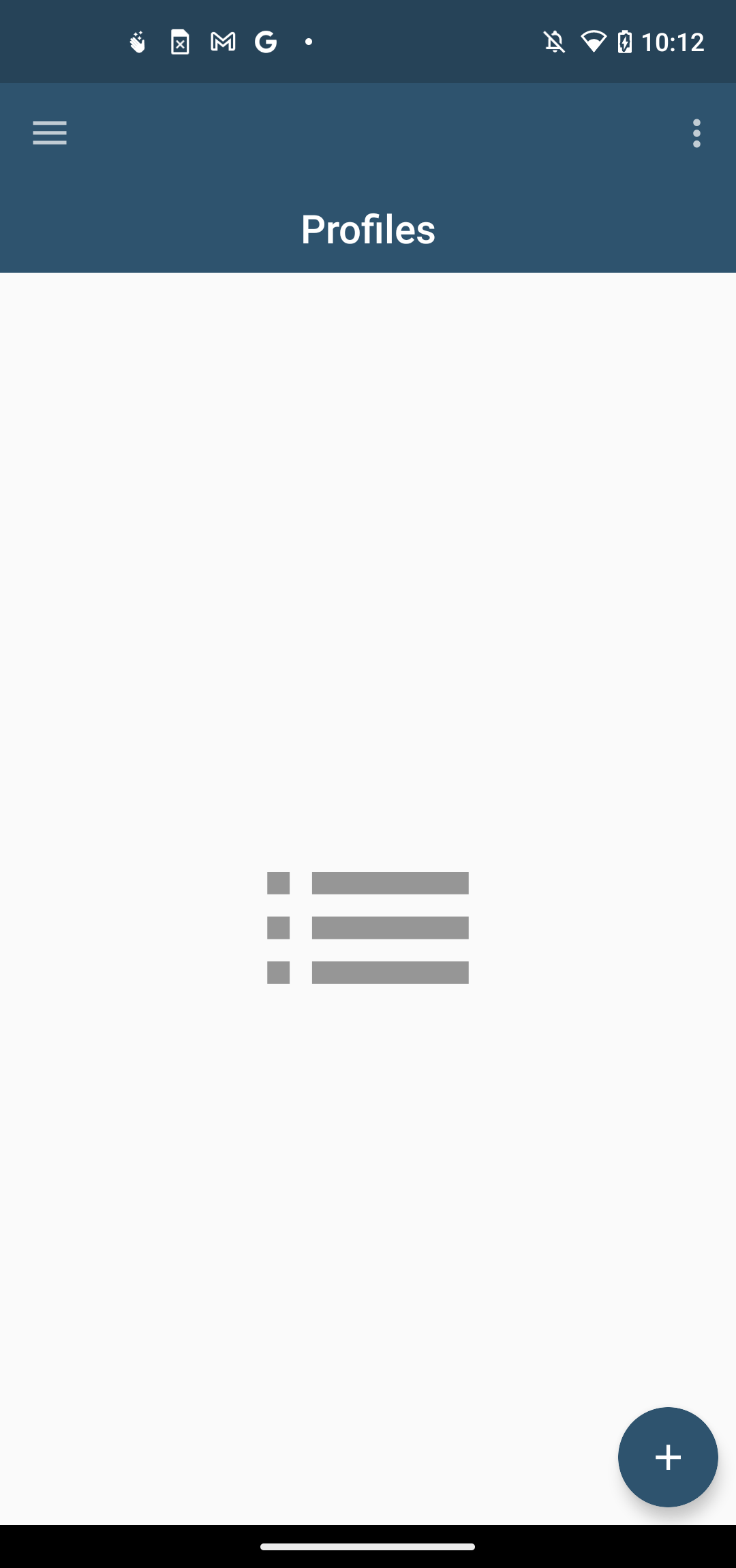
| 1 | - **Open** the *Capainstaller Configurator* App
-  |
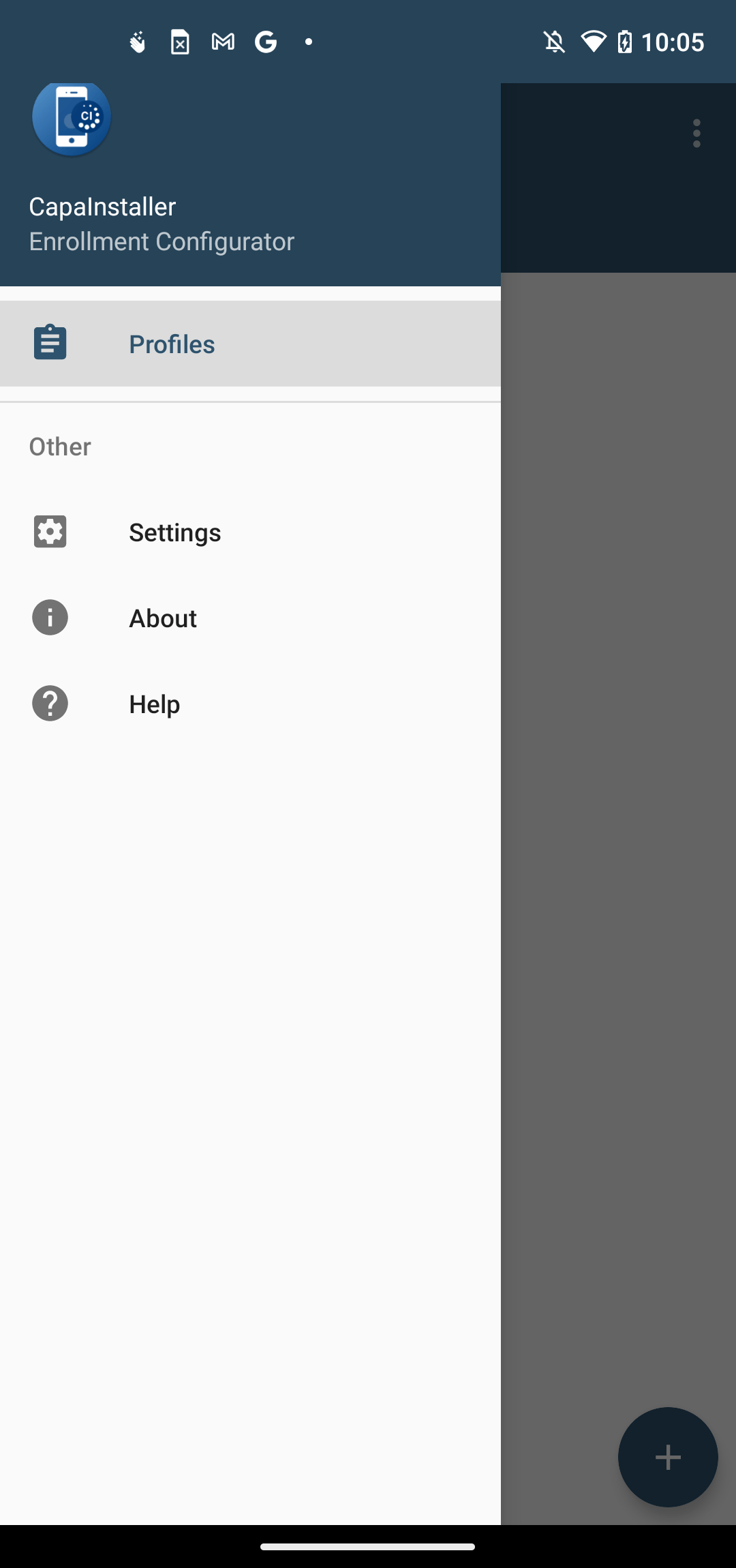
| 2 | - **Choose** *Settings* from the drawer menu
-  |
| 3 | - **Select** Company Name and type your company name
- 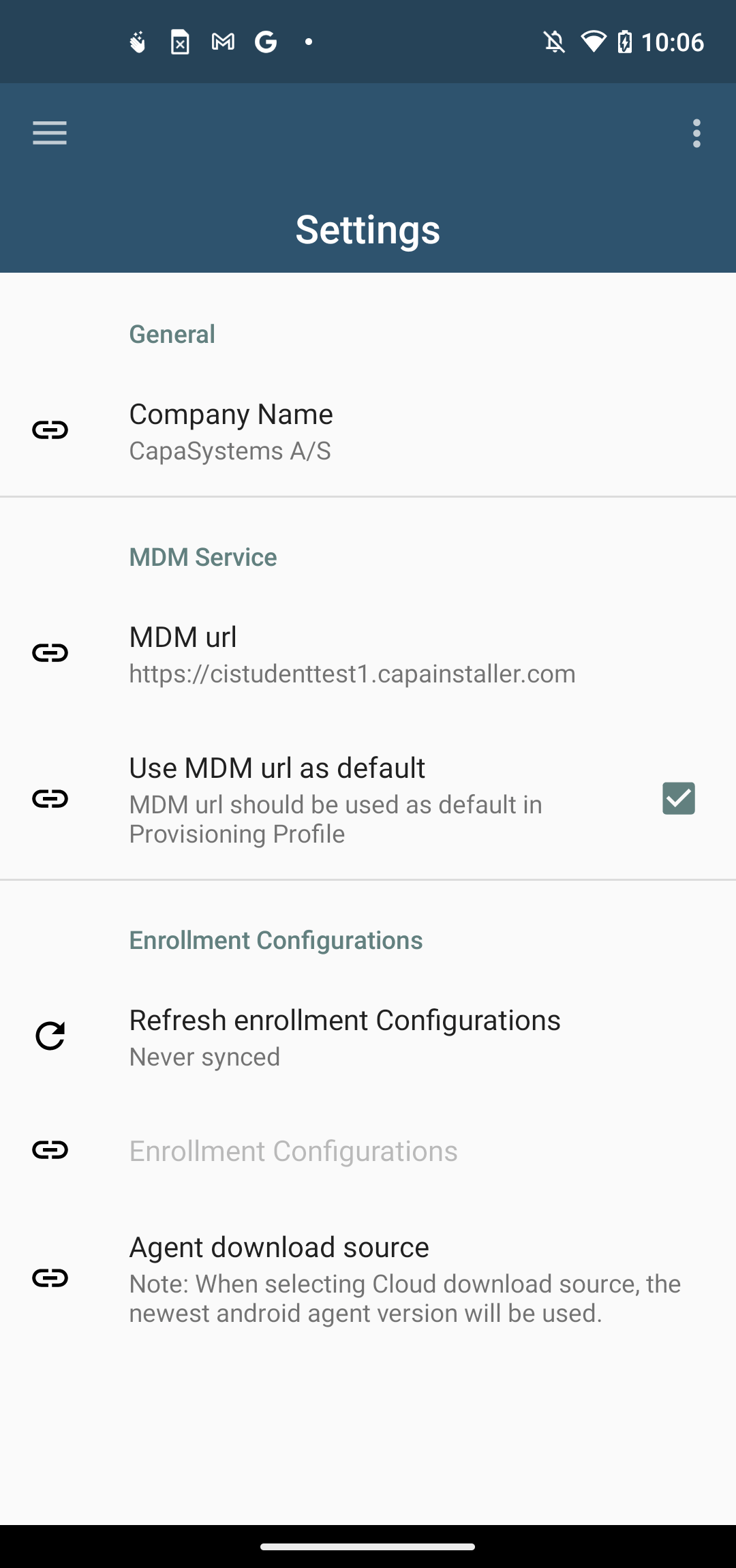 |
| 4 | **Select** MDM URL |
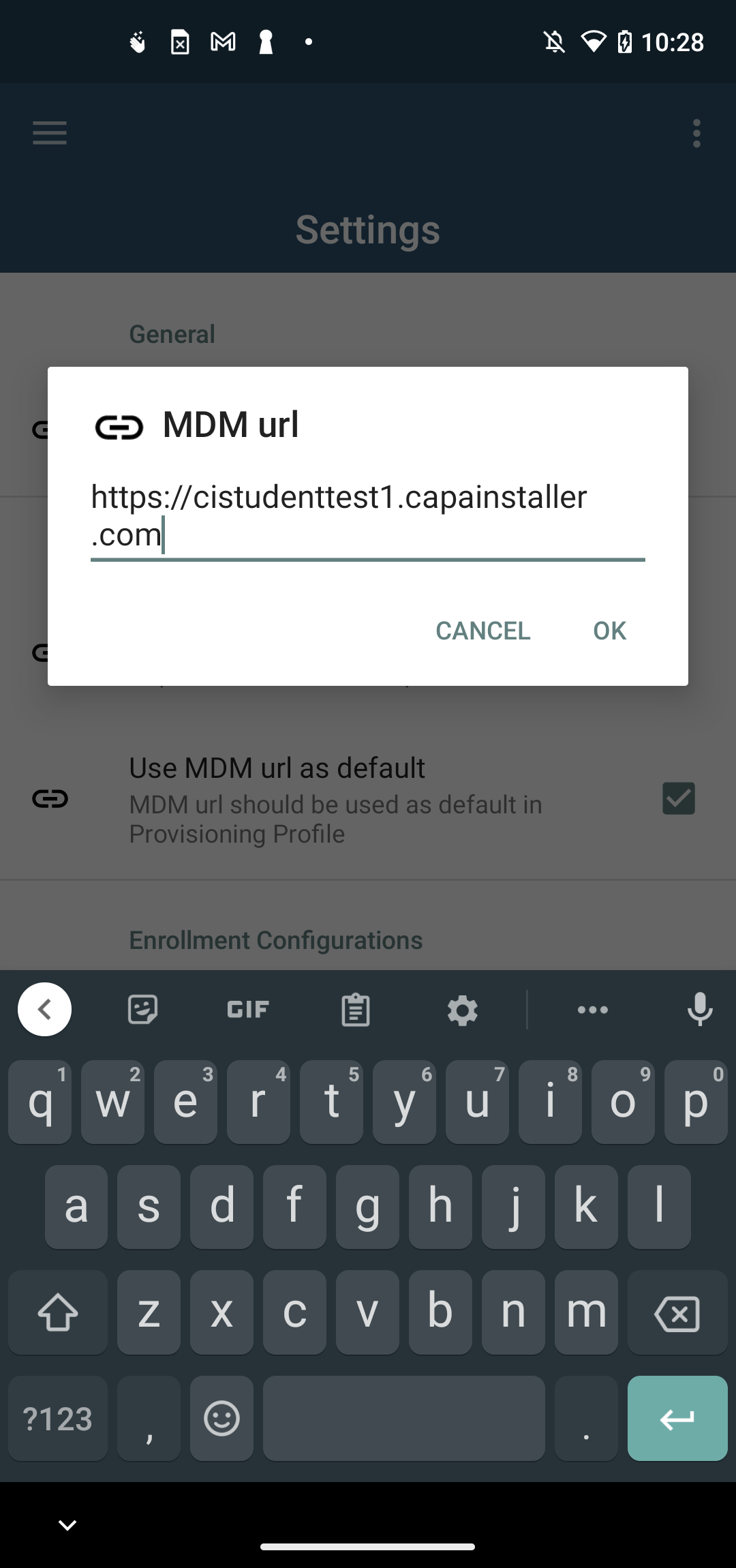
| 5 | - **Input** URL for MDM service
-  |
| 6 | **Select** *Refresh enrollment configurations,* this will fetch all your available enrollment configurations |
### Creating Profiles
How to create a new Profile
| Step | Configuration |
|-------:|:------------------------------------------------------------------------------------------------------------------------------------------------------------------------------------------------------------------------------------------------------------------------------------------------------------------|
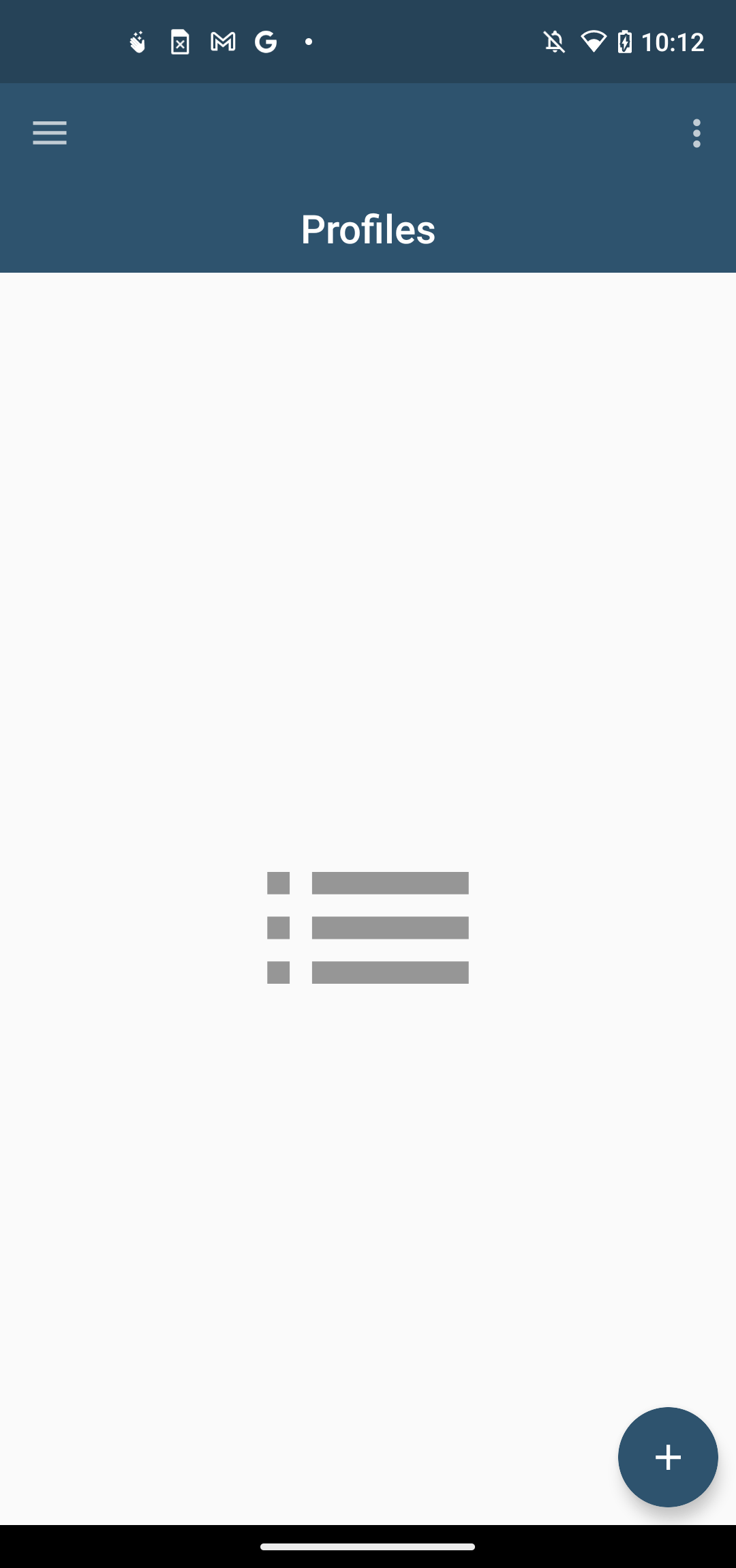
| 1 | - **Select** the  *action button* to begin the provisioning profile wizard:
-  |
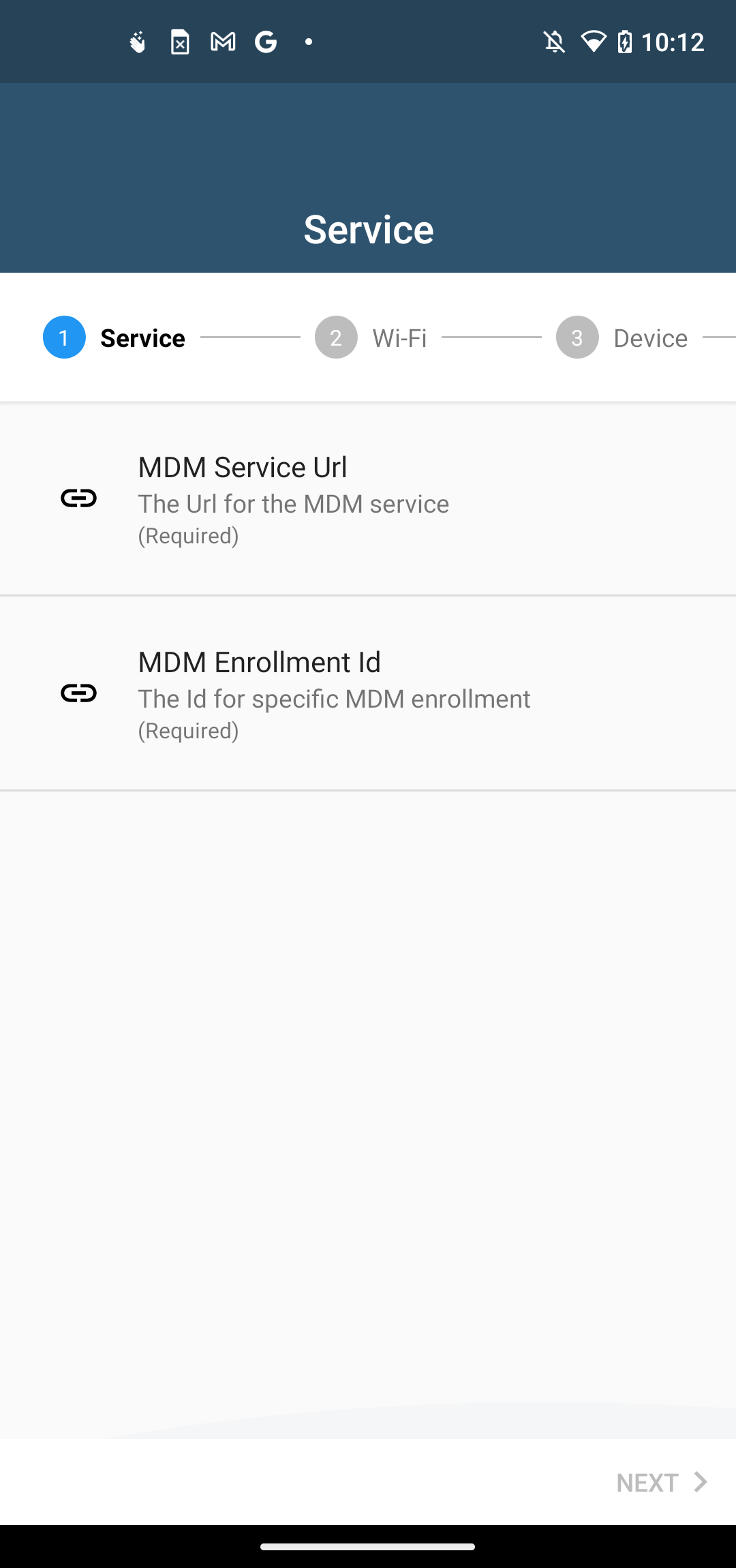
| 2 | - **Input** the URL to the MDM service and the enrollment id of the enrollment configuration to be used.
- If a default MDM URL or a default enrollment configuration is present, these will be used here
-  |
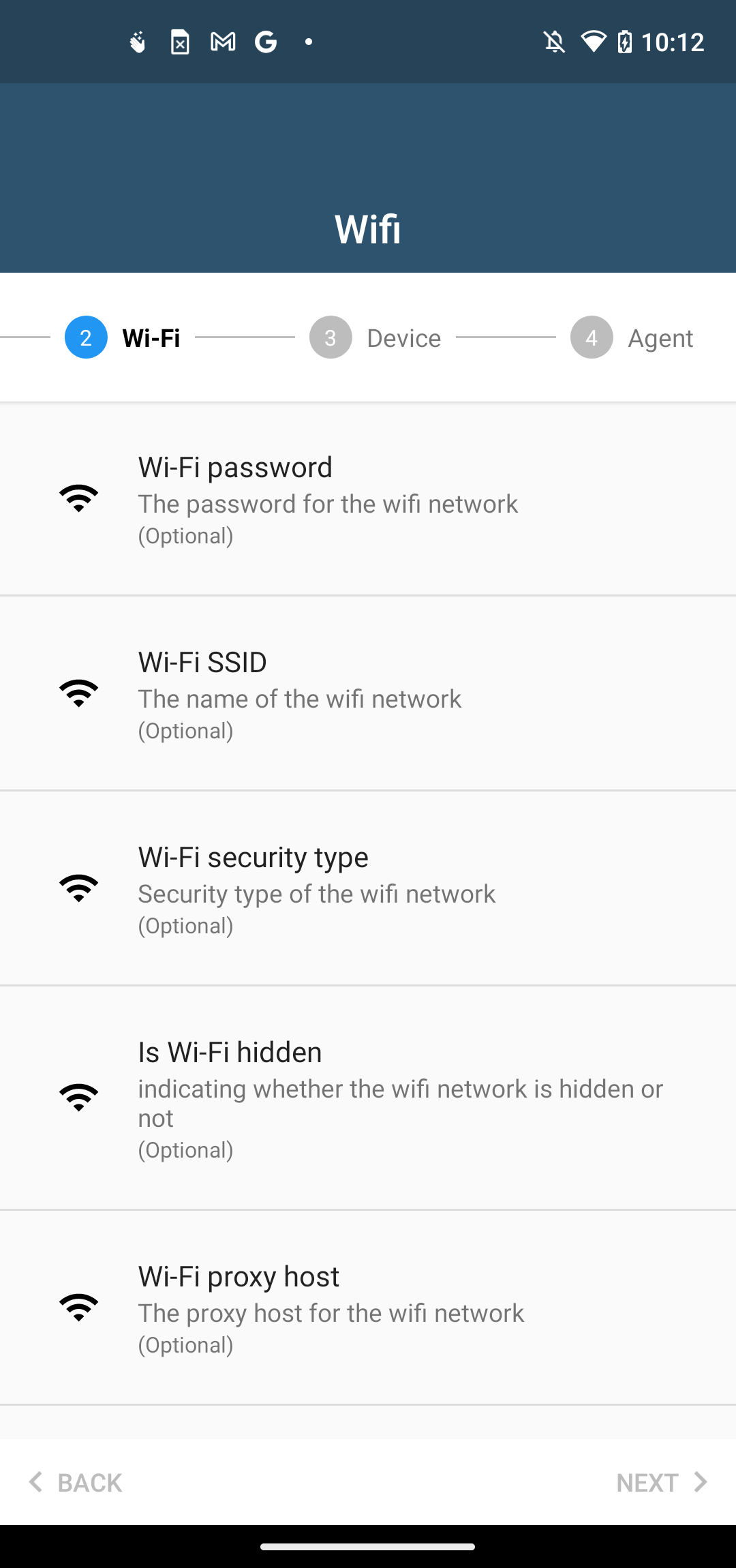
| 3 | - **Input** Wi-Fi password, SSID and security type for the network the device will connect to
- If no Wi-Fi settings are provided, the device will prompt for Wi-Fi during the provisioning process or use mobile data if available
-  |
| 4 | Device configuration (Optional)
- **Input** the Timezone and locale the enrolled device will use
- If no Timezone or Locale is provided, the device will be enrolled with the factory default language and timezone |
| 5 | Agent (Optional)
- **Input** the Alias of the device to be enrolled
- If no Alias is provided, the device will be enrolled with the factory default name |
:::caution
Remember to save the Profile if you wish to use it as a template for later use.
:::
### NFC Enrollment
How to enroll with NFC Beaming...
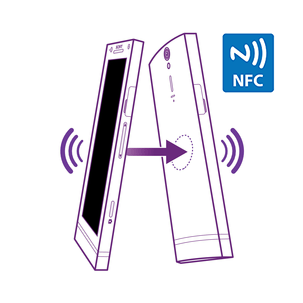
To simplify enrolling many devices with a specific configuration, CapaInstaller provides the possibility to wirelessly enroll devices with NFC support.
Using a master device to distribute the configuration to the new or reset devices makes bulk enrollment fast and simple.
| | |
|:----------------------------------------------------------------------|:-----------------------------------------------------------------------------------------------------------------------------------------------------------------------------------------------------------------------------------------------------------------------------------------------------------------------------------------------------------------------------------------------------------------------------------------------------------------------------------------------------------------------------------------------------------------------------------------------------------------------------------------------------------------------------------------------|
|  | - **Choose** a previously saved Profile
- **Select** the *Begin NFC enrollment action* button.
- **Wait** 5-10 seconds for the App to validate the MDM URL and the configuration is ready to transfer.
"Bump" the two devices, and press the screen to transfer the provisioning profile.
Once the transfer is complete the provisioning flow will begin. Just follow the guide available on the screen.
During the provisioning flow, the CapaInstaller Agent will be downloaded, enrolled and set as Device Owner.
 |
### QR Enrollment
| Step | Configuration |
|-------:|:----------------------------------------------------------------------------------------------------------------------------------------------------------------------------------------------------------------------------------------------------------------------------------------------------------------------------------------------------------|
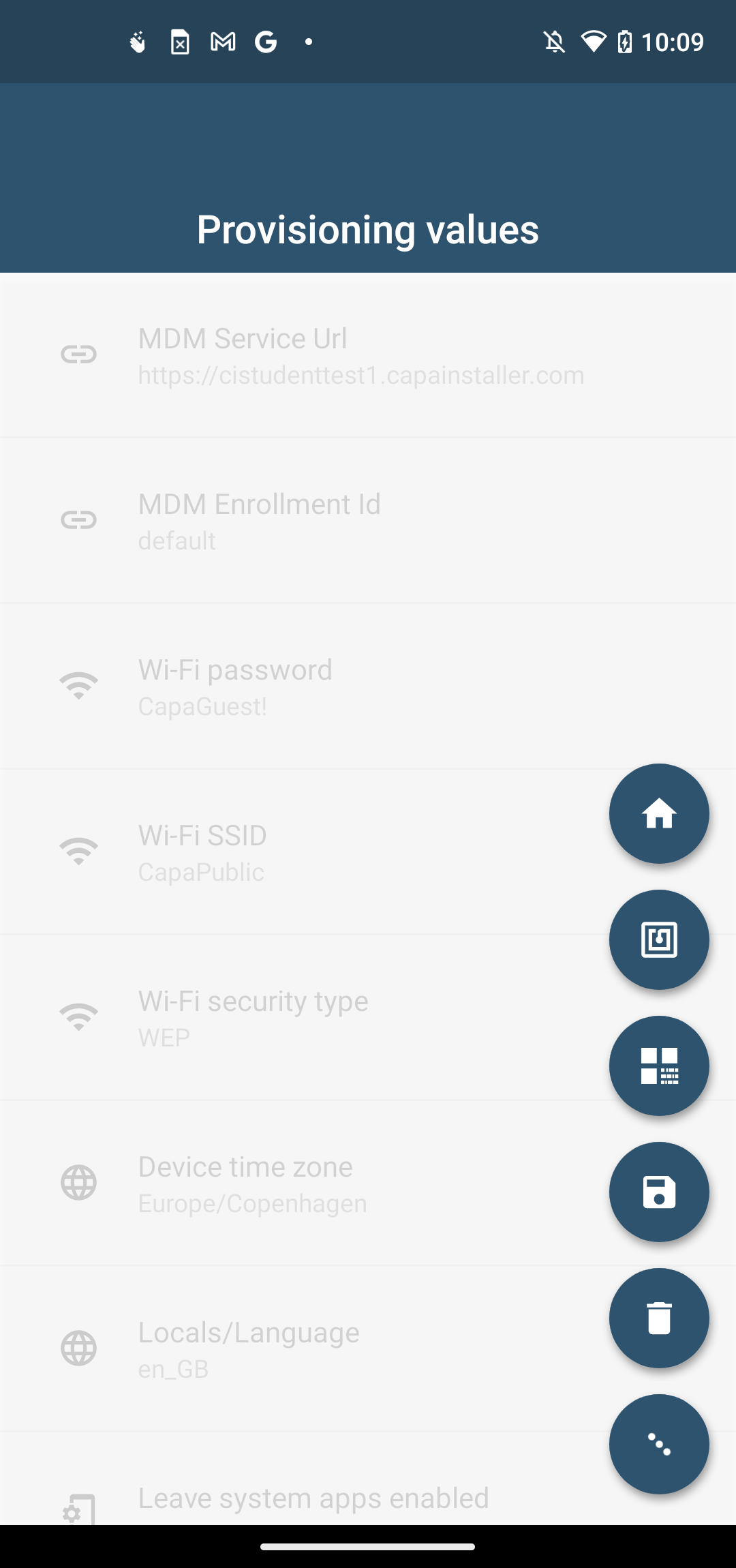
| 1 | - **Select** *Qr code* from the drawer menu
-  |
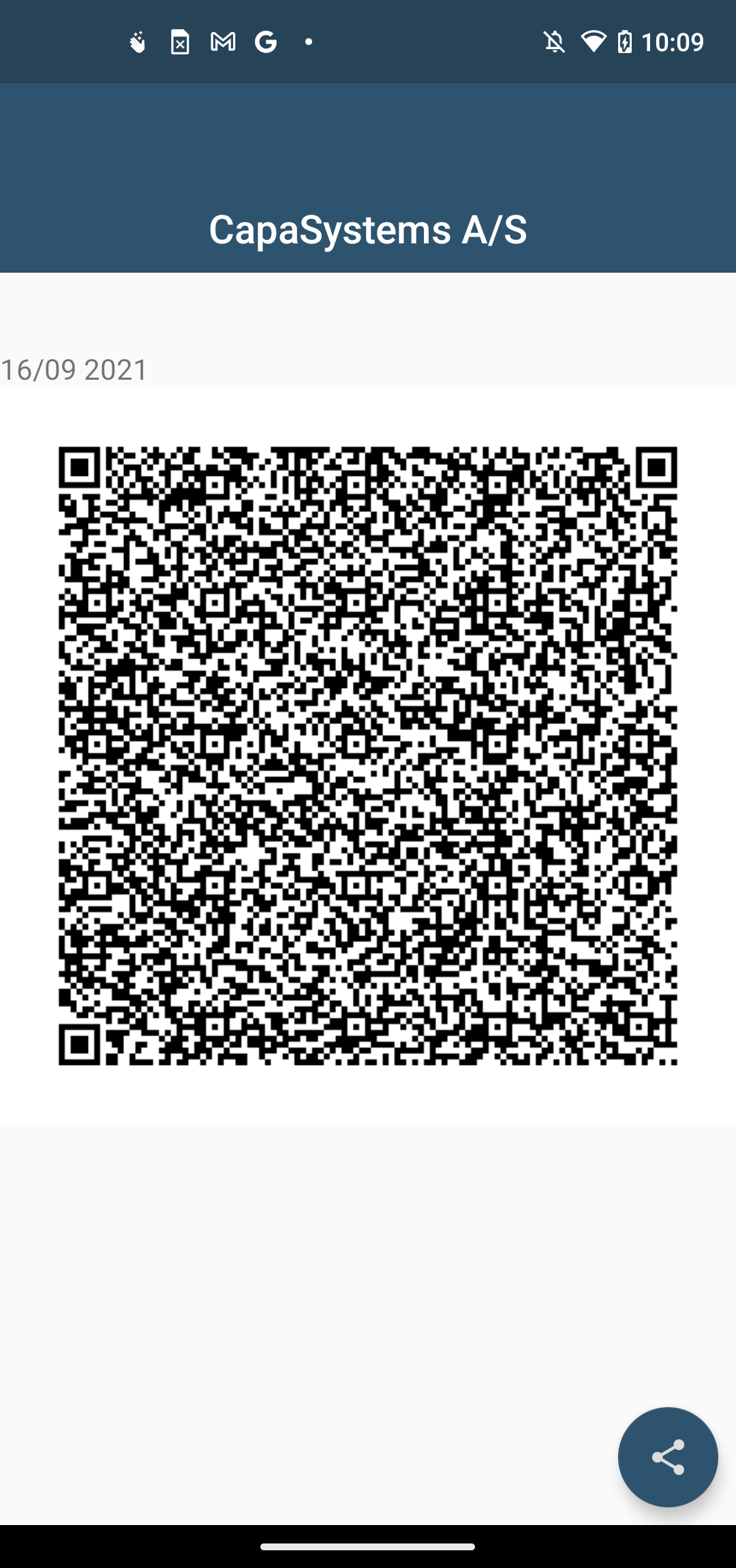
| 2 | **Wait** 5-10 seconds for the App to validate the MDM URL and create a QR code. |
| 3 | - **Either** scan the QR code or select the  action button to print, save or mail the QR code
-  |
| 4 | - On a new or factory-reset device, tap the screen 7 times in the same spot.
- The setup wizard prompts to connect to the Internet so the setup wizard can download a QR code reader.
- Google Play services download a module that contains a QR code recognition engine.
- Scan the QR code created in the previous step to enroll the device. |