# CapaBitLocker v4.0 - Variables
> The CapaBitLocker variables you can set, including which drives to encrypt and where recovery keys are saved.
Source: https://docs.capaone.com/capainstaller/capabitlocker/capabitlocker-v4-0/capabitlocker-v4-0-variables/
Product: CapaInstaller — a separate CapaSystems product; do not apply this page to any other.
*CapaBitLocker v4.0 released on December 16, 2022*
---
### BitLocker variables
gsDrivesToEncrypt / gsDrivesToDecrypt
The variable value can be *All* or *System*
`Default setting = All (recommended)`
*All* = All fixed drives are encrypted/decrypted
*System* = Only the operating system drive is encrypted/decrypted
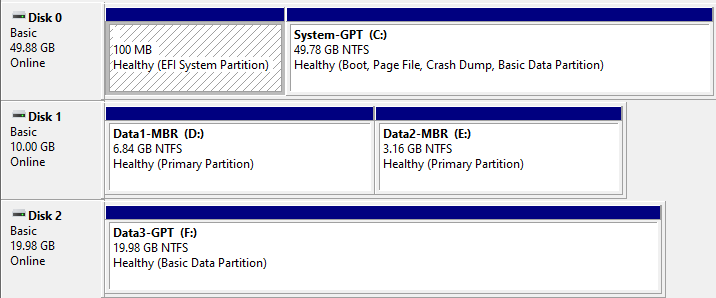
*Disk Management*
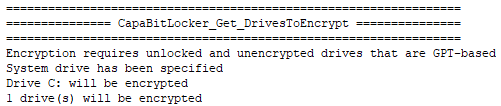
*System*
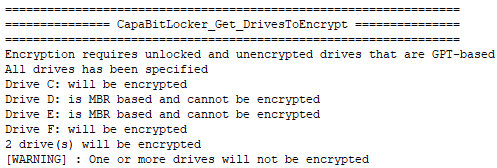
*All*
gbFailPackageOnError
The variable value can be *True* or *False*
`Default setting = False (recommended)`
*True* = Package status will be set to *Failed* in the CapaInstaller Console, when the first non-critical error is detected
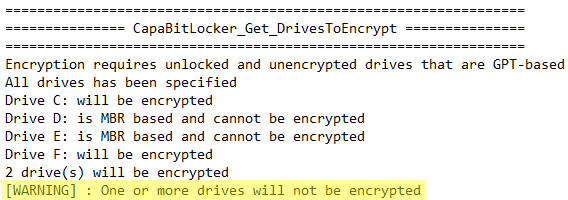
*False* = Package status will be set to *Installed* in the CapaInstaller Console, when non-critical errors are detected
In the example below, an error is written to the logfile, because gbFailPackageOnError is set to **True**
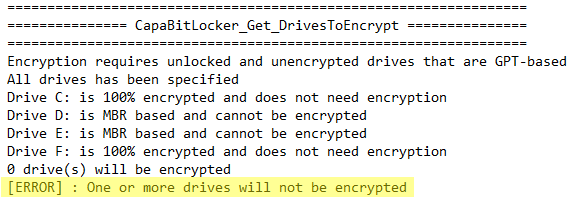
*True*

*CapaInstaller Console View*
In the example below, a warning is written to the logfile, because gbFailPackageOnError is set to **False**
*False*

*CapaInstaller Console View*
gbMaskSensitiveData
The variable value can be *True* or *False*
`Default setting = True (recommended)`
*True* = The last 4 digits of the Recovery Key ID and the Recovery Key Password is replaced with asterisk characters in the log file located on the endpoint
*False* = The full value of the Recovery Key ID and the Recovery Key Password is visible in the log file located on the endpoint

*True*
gbSaveRecoveryKeyInActiveDirectory
The variable value can be *True* or *False*
`Default setting = True (recommended)`
*True* = Recovery Key is saved in Active Directory
*False* = Recovery Key is not saved in Active Directory

*True*
💡 CapaBitLocker automatically detects if the domain is available before saving the recovery key in Active Directory.
gbSaveRecoveryKeyInCapaInstaller
The variable value can be *True* or *False*
`Default setting = True (recommended)`
*True* = Recovery Key is saved in CapaInstaller Custom Inventory
*False* = Recovery Key is not saved in CapaInstaller Custom Inventory

*True*
gbWaitForEncryptionToComplete / gbWaitForDecryptionToComplete
The variable value can be *True* or *False*
`Default setting = True`
*True* = Package will wait for encryption of drives to finish, before changing status to Installed
*False* = Package will initiate encryption of drives and change status to Installed afterwards
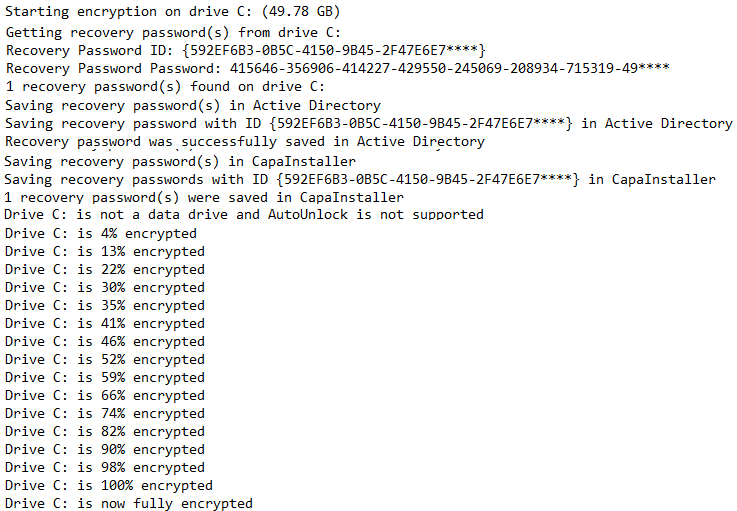
💡 All recovery keys are saved and auto-unlock on data drives are enabled, immediately after drive encryption has been initiated.
giRebootCount
The variable value can be a number between 0 and 10
`Default setting = 1`
0 = BitLocker is suspended infinitely and must be resumed manually
1-10 = BitLocker is suspended until the specified number of reboots has been performed
💡 BitLocker is suspended instantly.
---
### Common variables
gsIpAddressesToExclude
The variable value can be a full or a partial IPv4 address on endpoints that should be excluded.
`Default setting = ""`
The \* character must be used as a wildcard, when defining partial IPv4 addresses.
The , character must be used when defining multiple IPv4 addresses.
Example: `192.168.100.*,192.168.101.*`
gsGatewayAddressesToExclude
The variable value can be a full or a partial IPv4 address on gateways that should be excluded.
`Default setting = ""`
The \* character must be used as a wildcard, when defining partial IPv4 addresses.
The , character must be used when defining multiple IPv4 addresses.
Example: `192.168.100.*,192.168.101.*`
gsDeviceNamesToExclude
The variable value can be the NetBIOS name of endpoints that should be excluded.
`Default setting = ""`
The , character must be used when defining multiple endpoints.
gsHardwareModelsToExclude
The variable value can be the name of the hardware models that should be excluded.
`Default setting = ""`
The hardware model name is matched with the "System Model" value from the "SysInfo" command.
The , character must be used when defining multiple endpoints.
gbRequirePowerConnection
The variable value can be *True* or *False*
`Default setting = True`
*True* = External power connection is required
*False* = External power connection is not required
💡 This setting only affects laptops.
gbDisableCustomInventoryCollection
The variable value can be *True* or *False*
`Default setting = False`
*True* = Custom inventory is not collected during package execution **(not recommended)**
*False* = Custom inventory is collected during package execution